Set up Hemmia on a Mac
The hub is the computer at home that runs Hemmia for your family. A Mac works well: it is quiet, uses little power, and Macs with Apple silicon run local AI models fast.
What you need
- A Mac with Apple silicon (M1 or newer) and macOS 14 or later.
- 8 GB of memory runs a small local model; 16 GB or more is better, and pictures need 24 GB. Cloud models work with any Mac.
- About 10 GB of free disk space for a local model, and 6 GB more for pictures.
- The Mac should stay on. Hemmia keeps it from sleeping while phones need to reach it.
Download and install
Download the Hemmia hub package from the download page and open it. The installer asks for your Mac password, because the program goes into the system's Application Support folder.
Set up in the browser
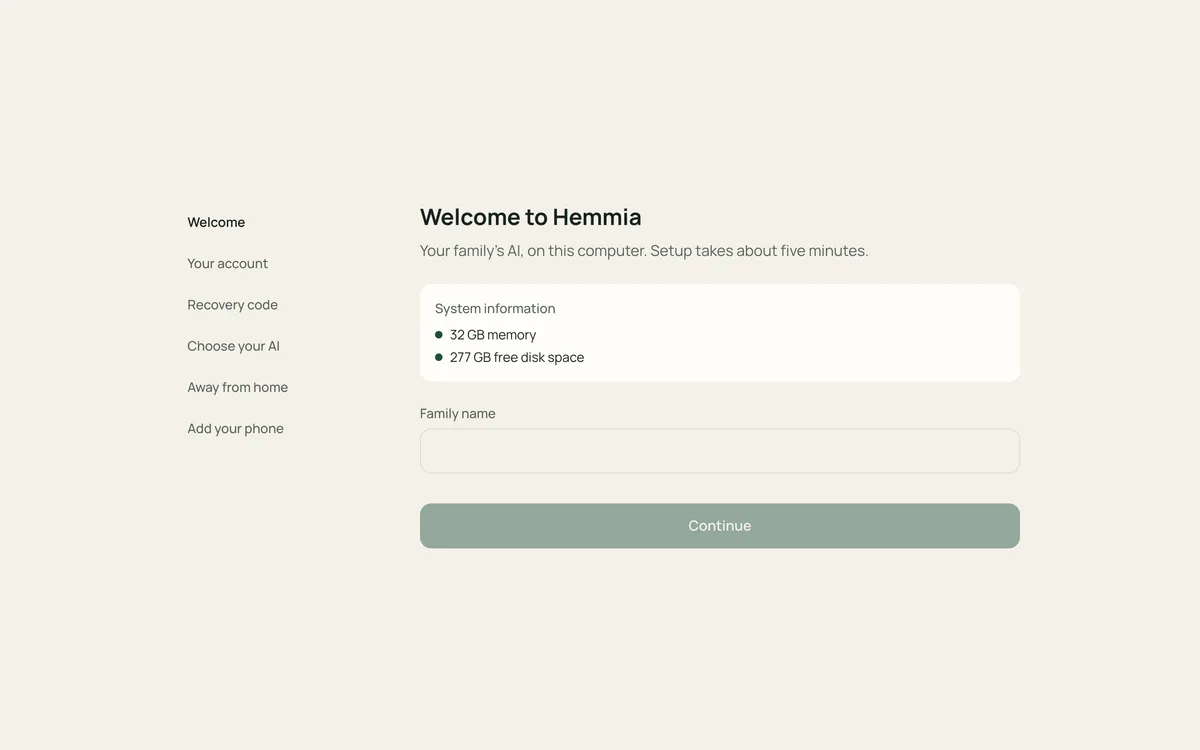
When the installer finishes, your browser opens the Hemmia setup. Give your family a name, create your own account and write down the recovery code. If you closed the page or waited more than a day, run the installer again: it opens the setup with a fresh link.
Choose your AI
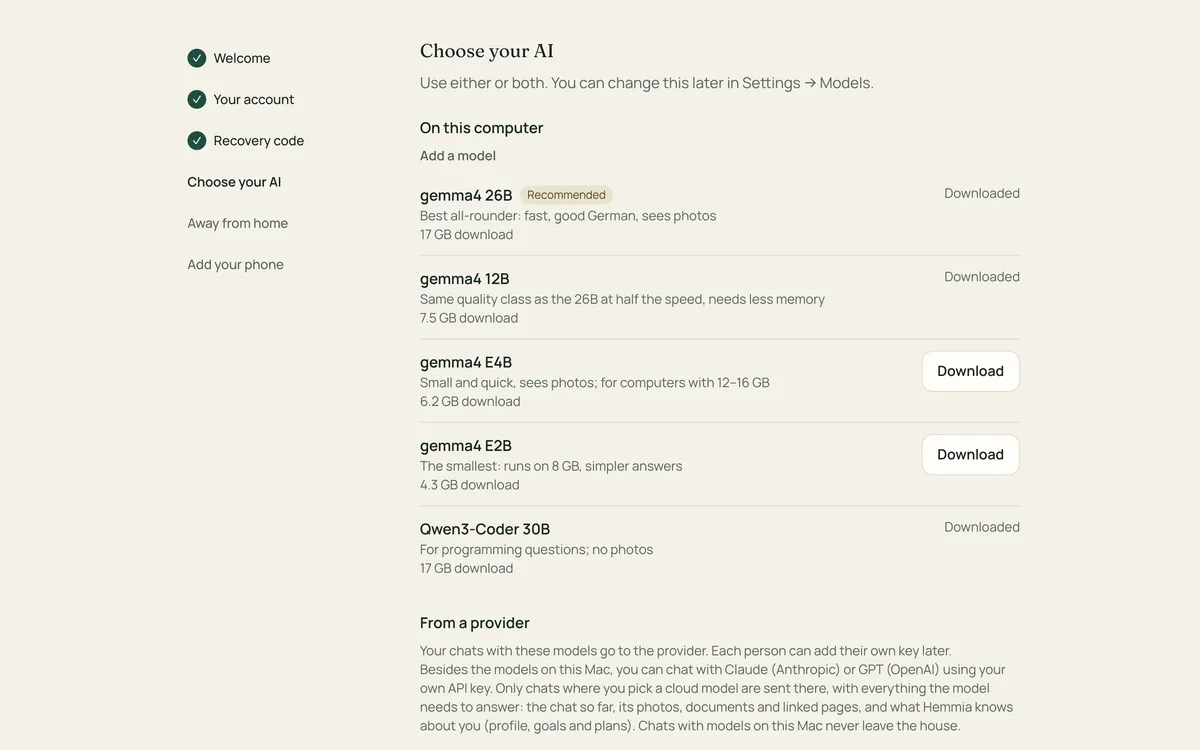
Hemmia recommends a local model that fits this Mac: download it, add a cloud key, or both. If Ollama isn't installed yet, Install Ollama does it for you. Here you can also Turn on pictures and Turn on web search. You can change all of this later in Settings → Models.
Make it reachable for phones
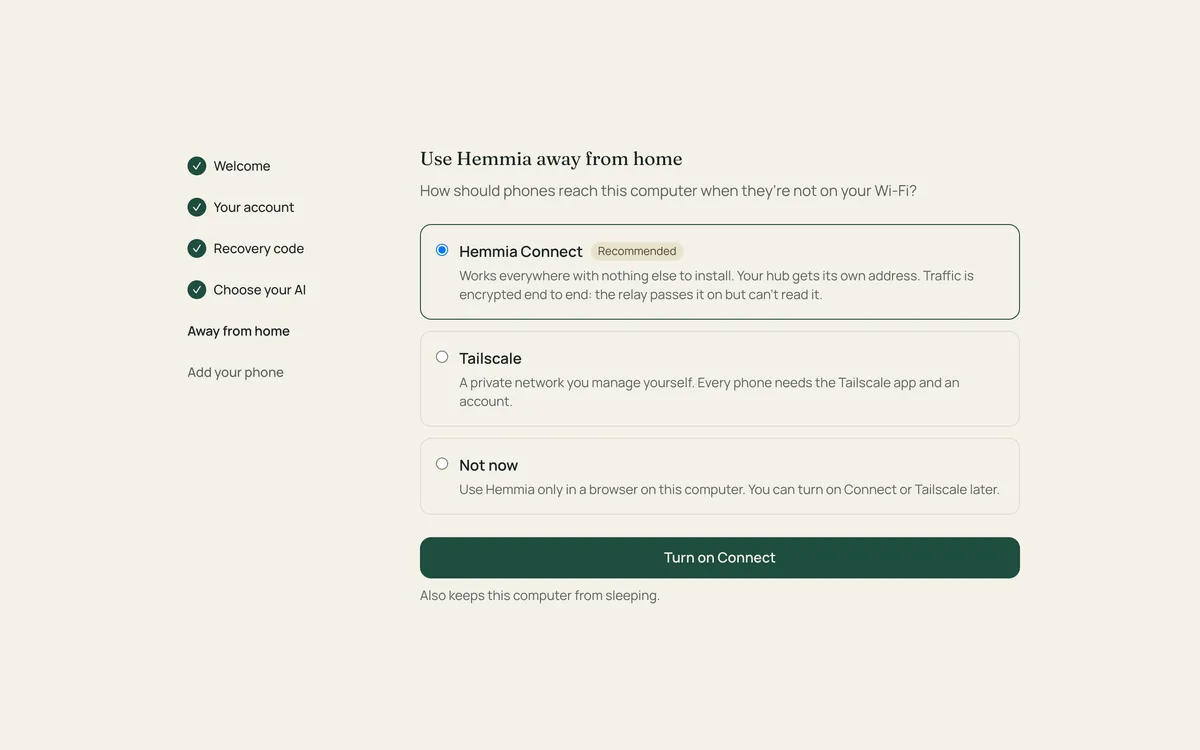
Phones reach the hub only through Hemmia Connect or Tailscale, at home too. Turn on Connect, or choose Tailscale and follow Away from home. With "Not now", Hemmia works only in a browser on this Mac.
Add your phone
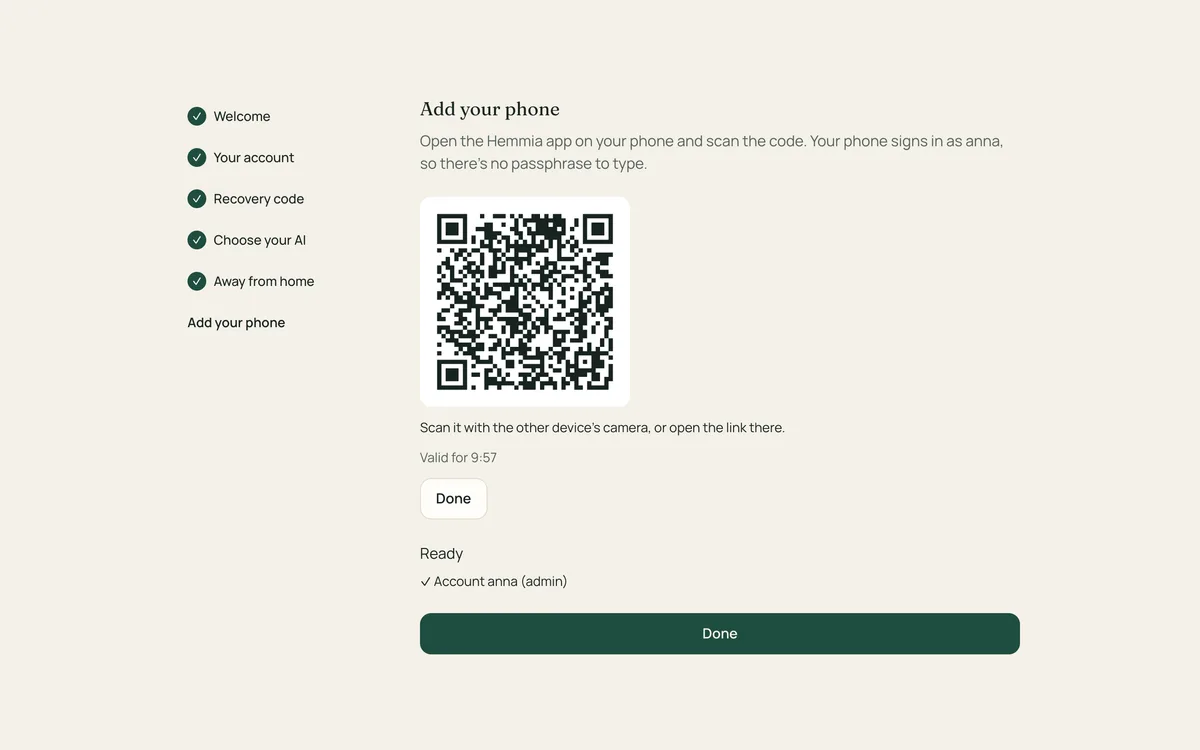
Install the Hemmia app on your phone, tap Scan the code and scan the code on the Mac's screen. Your phone signs in as you. More phones: Connect your phone.
Where your data lives
Your chats and settings are stored in your user's Library: ~/Library/Application Support/Hemmia. Keep that folder in your backups (Time Machine includes it); see Backups and recovery.
Uninstalling
Run this in Terminal:
sudo "/Library/Application Support/Hemmia/current/packaging/uninstall.sh"
It removes the program and keeps your data folder, and tells you where it is. Updates: Updating and uninstalling.