Invite your family
Everyone gets their own account with their own passphrase. Admins manage accounts, but nobody except the account owner can read their chats.
Create an invite
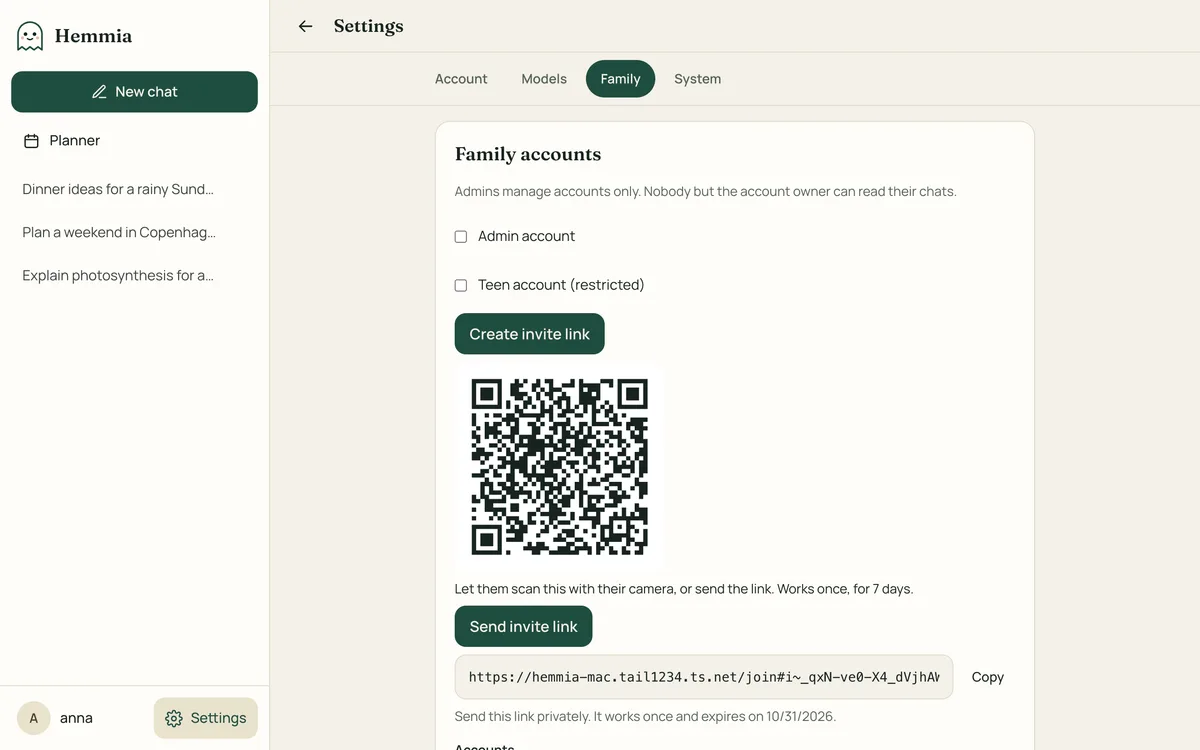
In Hemmia, open Settings → Family and tap Create invite link. Choose Admin account for another parent, or Teen account (restricted) for a child.
Let them scan it, or send the link
Hemmia shows a QR code. The person scans it with their phone's camera, or you tap Send invite link to send it through a messenger. The invite works once, for 7 days.
They create their account
They choose a username and a passphrase and get a recovery code to keep somewhere safe.
Restricted accounts
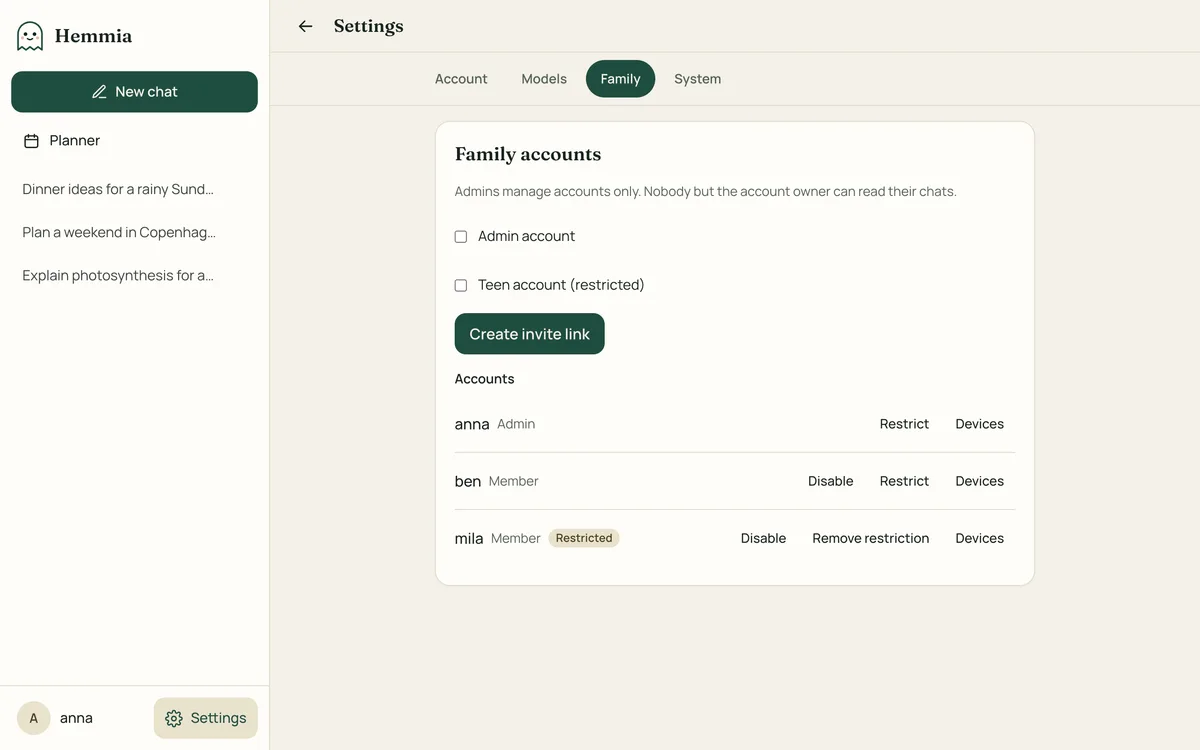
A restricted account suits teenagers: admins decide whether restricted accounts may use web search and cloud models, under Settings → Family. You can restrict or lift the restriction for any account later.
Devices
Each person can see their devices under Settings → Account → Devices, add another one with a QR code, and remove a lost phone. Admins can do the same for others in Settings → Family. A removed device is signed out at once and needs a new link to come back.
Disabling an account
Disable stops an account from signing in, without deleting anything. Enable brings it back.